
LPS Local Lightning Detector
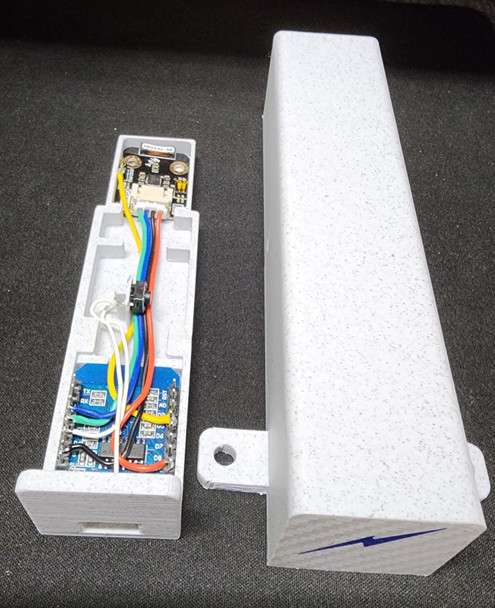

Description
LPS Local Lightning Detector
Protect your valuable radio equipment from lightning strikes.
The LPS Local Lightning Detector continuously monitors lightning activity in your local area and automatically safeguards your station when dangerous storms approach.
When lightning is detected within about a 25 mile radius, the unit automatically commands the LPS to disconnect up to FOUR coaxial feed lines.
Helping protect your radios and equipment from nearby lightning events. At the same time, LPS will email notification so you know your station has been secured. Once the storm has moved away and no lightning has been detected for your programmed "all clear" time, the system automatically reconnects your coax lines so you're ready to operate again... no manual intervention required.
FEATURES
* Monitors real-time local lightning activity by receiving radio waves in the 500 khz range and analyzing the received wave form for identification
*Communicates with LPS by WiFi to disconnect/connect coax feed lines
*Can be remotely located within your WiFi LAN and powered by a USB wall charger (no control cables used)
*Ideal for amateur radio stations and remote installations
*Totally automatic (hands free) operation
*Designed and built by True Ladder Line
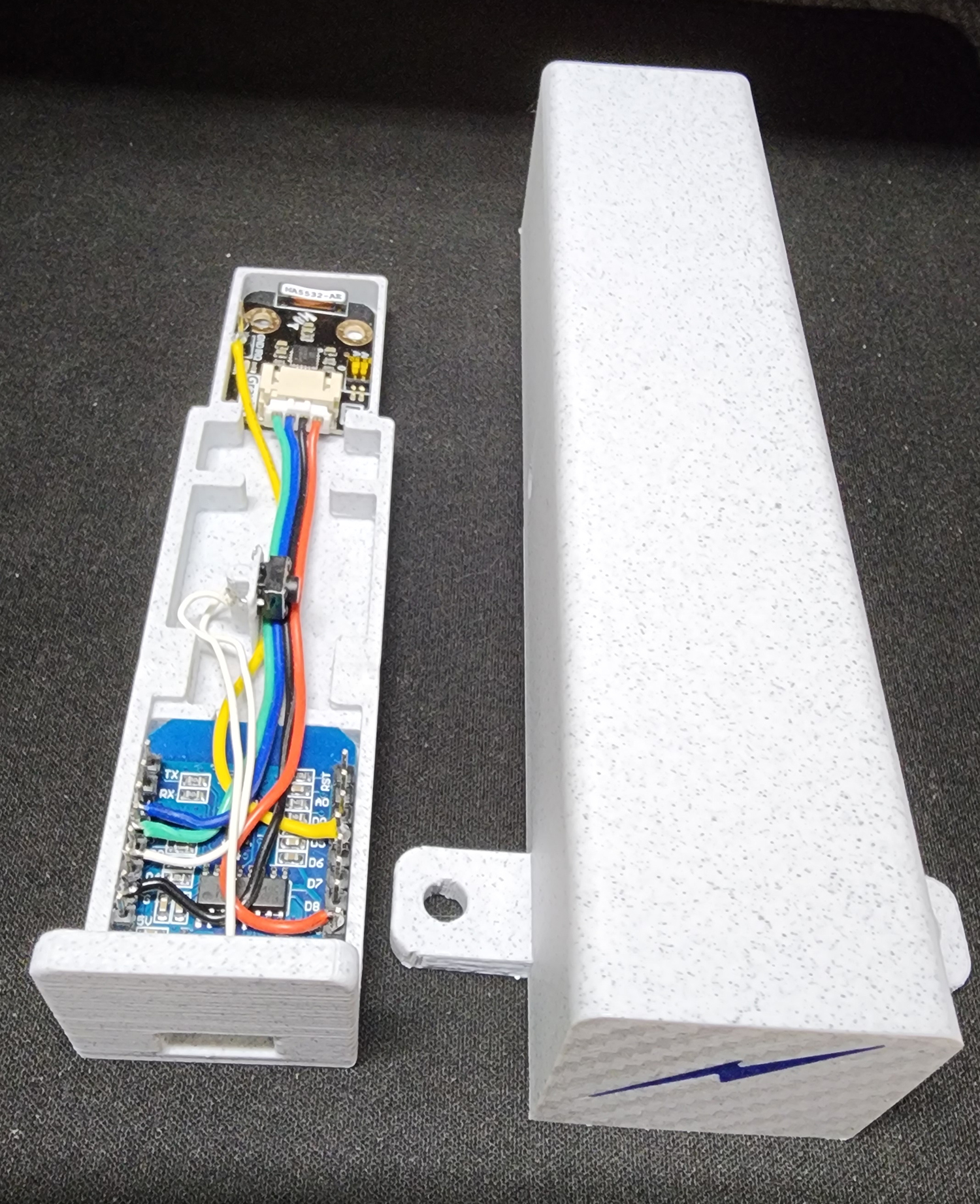
WiFi Connect Procedure (2.4G WiFi ONLY):
1) Press and hold the reset button located in the middle of the receiver module (above pix) until the blue led (see through hole in bottom of the unit) flashes quickly.
2) Find "LightningDetector-Setup" SSID in your WiFi connection window of your PC.
3) Click on "LightningDetector-Setup" SSID and click on "connect" to connect "LightningDetector-Setup" to your WiFi LAN
4) This page will pop up in your browser:
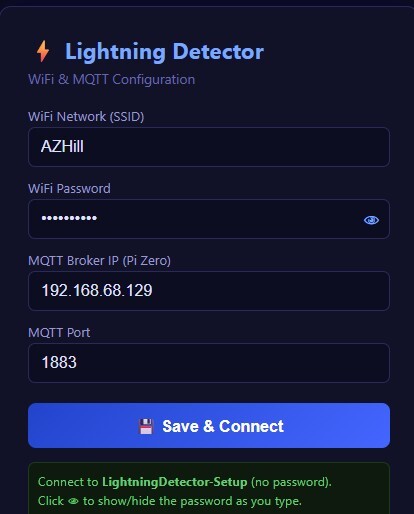
5) Enter your WiFi Network (ssid) exactly as it is (respect upper & lower case characters)
6) Enter your WiFi Network password it requires
7) Enter MQTT IP Address (this is the address assigned to your LPS(local IP address, not your public IP address if used), just the address-no ":1880/ui")
8) Leave MQTT Port as is-1883
9) Click "Save & Connect". You should see the following page pop up:
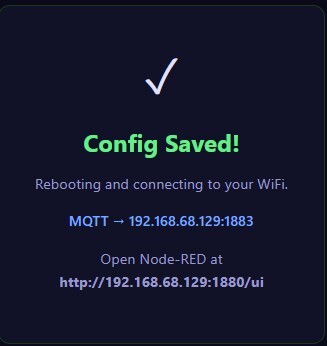
10) Note that your LPS browser address is shown at the bottom of the page.
11) Connect back to your router, bring up LPS with your browser and click on hamburger
to the left of the home (top left of the screen) and click on "Local Detector":
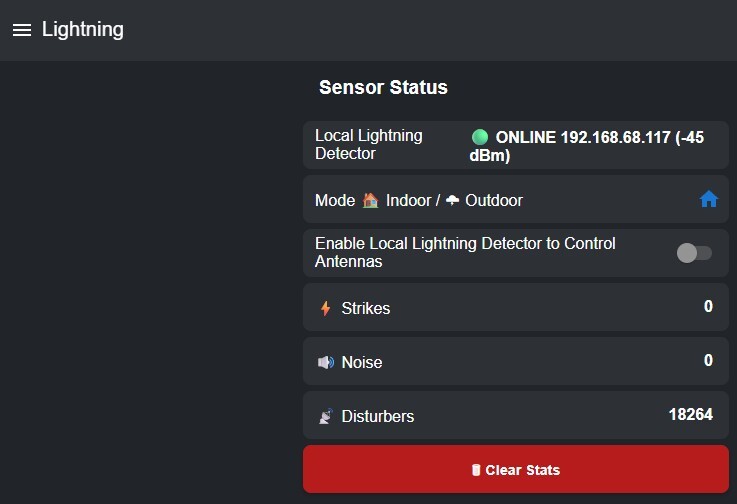
12) You should have a green button in the "Local Lightning Detector" box (top one above screen shot)
13) Enable "Local Lightning Detector to Control Antennas" slider (2nd box down)
Your Local Lightning Detector should not have control of your LPS (if you have chosen Local Rx as a detection source)
14) Select (click on) your selected mode: "Indoor" or "Outdoor" depending on your application
Fine tuning your Local Rx:
These parameters need to be setup for your particular location due to variabilities in the received noise floor.
 Noise Floor (0–7)
|
Value
|
Sensitivity
|
Use When
|
|---|---|---|
|
0
|
Maximum
|
Very quiet rural location, no interference
|
|
1
|
Very high
|
Low interference environment
|
|
2
|
High
|
Default — good for most locations
|
|
3
|
Medium-high
|
Some household RF interference
|
|
4
|
Medium
|
Moderate interference (LED lights, switching PSUs)
|
|
5
|
Medium-low
|
High interference indoor environment
|
|
6
|
Low
|
Very noisy environment
|
|
7
|
Minimum
|
Extremely noisy — only very strong signals detected
|
 Watchdog Threshold (0–10)
|
Value
|
Strictness
|
Effect
|
|---|---|---|
|
0
|
Least strict
|
Accepts almost any signal shape
|
|
2
|
Balanced
|
Default — good starting point
|
|
5
|
Moderate
|
Rejects signals that don't look much like lightning
|
|
10
|
Most strict
|
Only very clean lightning-shaped pulses pass
|
 Spike Rejection (0–11)
|
Value
|
Rejection Level
|
Effect
|
|---|---|---|
|
0
|
None
|
Everything that passes watchdog gets through
|
|
2
|
Moderate
|
Default — filters most common interference
|
|
5
|
Strong
|
Aggressively filters non-lightning signals
|
|
11
|
Maximum
|
Only signals that very closely match lightning patterns pass
|
Minimum Strikes Before Alert (1, 5, 9, 16)
|
Value
|
Behavior
|
Use When
|
|---|---|---|
|
1
|
Reports on first strike
|
Default — maximum responsiveness
|
|
5
|
Waits for 5 strikes in 15 min
|
Reduces occasional false positives
|
|
9
|
Waits for 9 strikes in 15 min
|
Only reports during active storm cells
|
|
16
|
Waits for 16 strikes in 15 min
|
Only reports heavy lightning activity
|
|
Situation
|
Noise Floor
|
Watchdog
|
Spike Reject
|
Min Strikes
|
|---|---|---|---|---|
|
Normal storm monitoring (outdoors)
|
2
|
2
|
2
|
1
|
|
Noisy indoor location
|
4–5
|
3–4
|
3–4
|
1
|
|
Lots of false disturbers
|
3
|
4
|
5
|
1
|
|
Missing distant storms
|
1
|
1
|
1
|
1
|
|
Only want confirmed storms
|
2
|
2
|
2
|
9–16
|
|
Gulf Coast storm season
|
2
|
2
|
2
|
1
|
Distance Correction 1.2
Related Products
Related Products

LPS Mounting Bracket

LPS WiFi Contactor
Lightning Protection System-OLED Display
